ArgoCD Installation and Deployment

Installation and Deployment

Deploying ArgoCD is straightforward. Use the official high-availability (HA) deployment method:

1
2
kubectl create namespace argocd
kubectl apply -n argocd -f https://raw.githubusercontent.com/argoproj/argo-cd/v1.5.2/manifests/ha/install.yaml

You can customize the deployment file as needed. After the pods are successfully started:

 1
 2
 3
 4
 5
 6
 7
 8
 9
10
11
12
13
14
15
16
17
18
# kubectl -n argocd get pod
NAME                                             READY   STATUS    RESTARTS   AGE
argocd-application-controller-66fbf66657-ghf2c   1/1     Running   0          6d17h
argocd-application-controller-66fbf66657-gpm7d   1/1     Running   0          6d17h
argocd-application-controller-66fbf66657-tr5kd   1/1     Running   0          6d17h
argocd-dex-server-5c5f986596-c8ftv               1/1     Running   0          9d
argocd-redis-ha-haproxy-69c6df79c6-2fxd6         1/1     Running   0          9d
argocd-redis-ha-haproxy-69c6df79c6-mksg2         1/1     Running   0          9d
argocd-redis-ha-haproxy-69c6df79c6-wq57f         1/1     Running   0          9d
argocd-redis-ha-server-0                         2/2     Running   0          9d
argocd-redis-ha-server-1                         2/2     Running   0          9d
argocd-redis-ha-server-2                         2/2     Running   0          9d
argocd-repo-server-76bbb56cc7-d8fp5              1/1     Running   0          7d
argocd-repo-server-76bbb56cc7-qvl5z              1/1     Running   0          7d
argocd-repo-server-76bbb56cc7-xqrfn              1/1     Running   0          7d
argocd-server-6464c7bcd-fgktr                    1/1     Running   0          6d19h
argocd-server-6464c7bcd-jkqdb                    1/1     Running   0          6d19h
argocd-server-6464c7bcd-nfdwn                    1/1     Running   0          6d19h

Configure Ingress for ArgoCD Access

 1
 2
 3
 4
 5
 6
 7
 8
 9
10
11
12
13
14
15
16
17
apiVersion: extensions/v1beta1
kind: Ingress
metadata:
  name: argocd-server-ingress
  namespace: argocd
  annotations:
    kubernetes.io/ingress.class: traefik
    traefik.ingress.kubernetes.io/redirect-entry-point: https
spec:
  rules:
    - host: cd.testcn
      http:
        paths:
        - backend:
            serviceName: argocd-server
            servicePort: https
          path: /

Access ArgoCD via https://cd.test.cn/. The default username is admin, and the password is the name of one of the pods. Retrieve the password using:
Build a Personal Blog with Hugo + GitHub

Introduction to Hugo

Previously, I used Hexo to build my blog. As I’ve been using Go more and more, I’ve wanted to migrate my blog to Hugo. Hugo is a static site generator written in Go—simple, easy to use, efficient, extensible, and fast to deploy.

Installing Hugo

Here’s how to install Hugo on macOS:

1
2
3
4
5
6
brew install hugo
hugo new site wanzi
cd wanzi
git clone https://github.com/xianmin/hugo-theme-jane.git --depth=1 themes/jane
cp -r themes/jane/exampleSite/content ./
cp themes/jane/exampleSite/config.toml ./

Update config.toml with your own blog information.

Add a user to a Kubernetes cluster

Previously, an Kubernetes cluster environment was set up using Ansible. The current requirement is to add a user for daily management, restricted to a specific namespace. Below are the steps:

Kubernetes Users

In Kubernetes, there are two types of users: ServiceAccounts and regular users (User). ServiceAccounts are managed by Kubernetes, while regular users are typically managed externally. Kubernetes does not store user lists—meaning user creation, modification, or deletion must be handled externally, without interacting with the Kubernetes API. Although Kubernetes does not manage users directly, it can recognize the identity of users making API requests. In fact, every API request to Kubernetes must be associated with an identity (either a User or a ServiceAccount), allowing us to assign permissions within the cluster to specific users.

Deploy traefik2.1 in kubernetes cluster

Architecture & Concepts

traefik v2.1 router

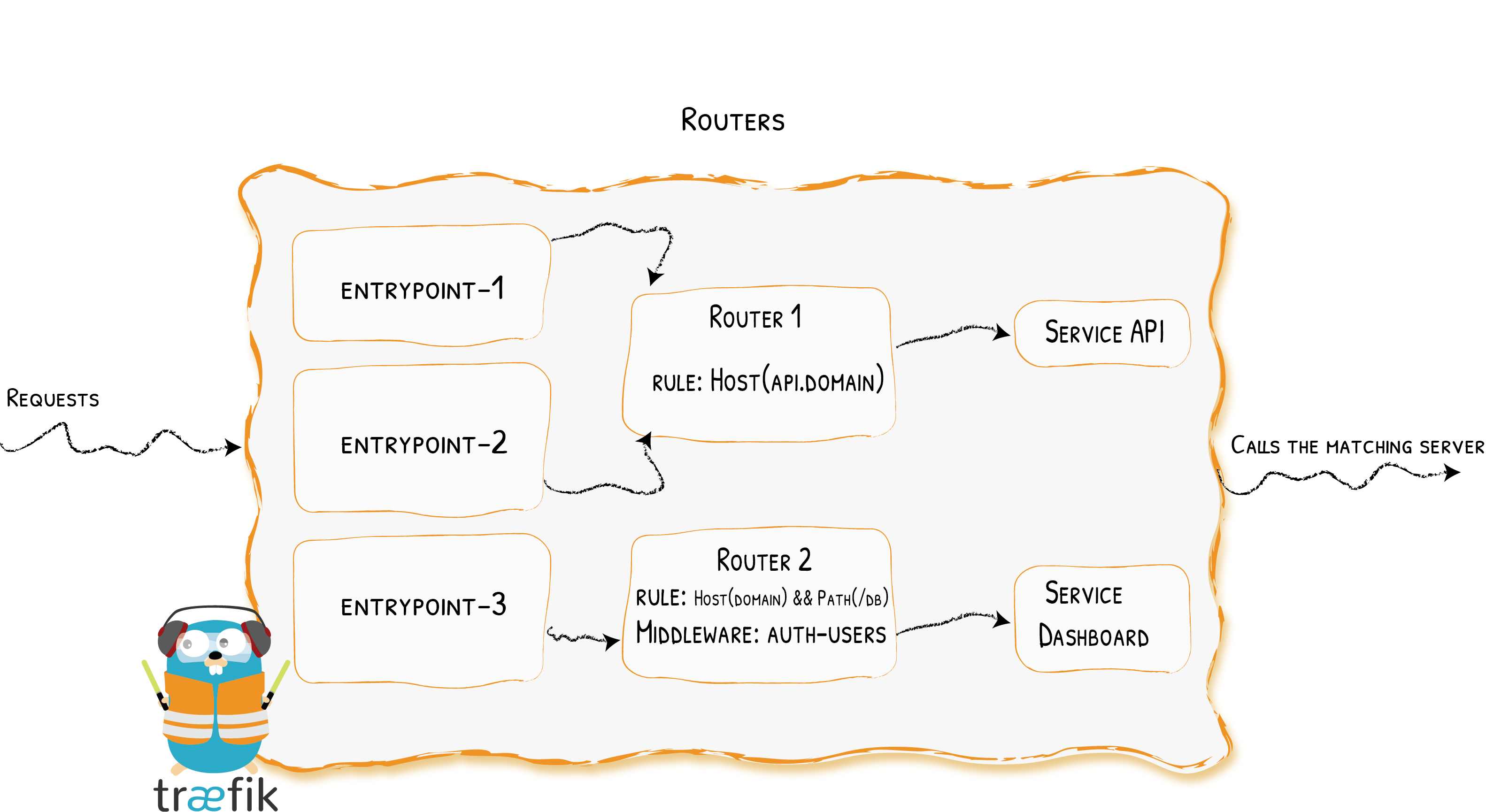
Traefik 2.x has a big change compared to 1.7.x architecture. As shown in the architecture diagram above, the main function is to support TCP protocol and add the concept of Router.

Here we use Traefik 2.1 deployed in the kubernetes cluster. Business access is requested to traefik Ingress through haproxy. The following are some concepts involved in the construction process:

  • EntryPoints: Traefik’s network entry, defining the port where the request is accepted (regardless of http or tcp)

Deploying a K8s cluster with kubeasz

Environment Preparation

  • Master nodes
1
2
3
172.16.244.14
172.16.244.16
172.16.244.18
  • Node nodes
1
2
172.16.244.25
172.16.244.27
  • Master node VIP: 172.16.243.13

  • Deployment tool: Ansible/kubeasz

Initialize Environment

Install Ansible

1
2
3
4
5
apt update
apt-get install ansible expect
git clone https://github.com/easzlab/kubeasz
cd kubeasz
cp * /etc/ansible/

Configure Ansible SSH Keyless Login

1
2
ssh-keygen -t rsa -b 2048 # Generate key pair
./tools/yc-ssh-key-copy.sh hosts root 'rootpassword'

Prepare Binary Files

1
2
cd tools
./easzup -D # Downloads binaries to /etc/ansible/bin/ by default

Configure hosts file as follows:

 1
 2
 3
 4
 5
 6
 7
 8
 9
10
11
12
13
14
15
16
17
18
19
20
21
22
23
24
25
26
27
28
29
30
31
32
33
34
35
36
37
38
39
40
41
42
43
44
45
46
47
48
49
50
51
52
53
54
55
56
57
58
59
60
61
62
63
[kube-master]
172.16.244.14
172.16.244.16
172.16.244.18

[etcd]
172.16.244.14 NODE_NAME=etcd1
172.16.244.16 NODE_NAME=etcd2
172.16.244.18 NODE_NAME=etcd3

# haproxy-keepalived
[haproxy]
172.16.244.14
172.16.244.16
172.16.244.18

[kube-node]
172.16.244.25
172.16.244.27

# [optional] load balance for accessing k8s from outside
[ex-lb]
172.16.244.14 LB_ROLE=backup EX_APISERVER_VIP=172.16.243.13 EX_APISERVER_PORT=8443
172.16.244.16 LB_ROLE=backup EX_APISERVER_VIP=172.16.243.13 EX_APISERVER_PORT=8443
172.16.244.18 LB_ROLE=master EX_APISERVER_VIP=172.16.243.13 EX_APISERVER_PORT=8443

# [optional] ntp server for the cluster
[chrony]
172.16.244.18

[all:vars]
# --------- Main Variables ---------------
# Cluster container-runtime supported: docker, containerd
CONTAINER_RUNTIME="docker"

# Network plugins supported: calico, flannel, kube-router, cilium, kube-ovn
#CLUSTER_NETWORK="flannel"
CLUSTER_NETWORK="calico"

# Service proxy mode of kube-proxy: 'iptables' or 'ipvs'
PROXY_MODE="ipvs"

# K8S Service CIDR, not overlap with node(host) networking
SERVICE_CIDR="10.68.0.0/16"

# Cluster CIDR (Pod CIDR), not overlap with node(host) networking
CLUSTER_CIDR="10.101.0.0/16"

# NodePort Range
NODE_PORT_RANGE="20000-40000"

# Cluster DNS Domain
CLUSTER_DNS_DOMAIN="cluster.local."

# -------- Additional Variables (don't change the default value right now) ---
# Binaries Directory
bin_dir="/opt/kube/bin"

# CA and other components cert/key Directory
ca_dir="/etc/kubernetes/ssl"

# Deploy Directory (kubeasz workspace)
base_dir="/etc/ansible"

Deploy K8S Cluster

Initialize Configuration

1
2
cd /etc/ansible
ansible-playbook 01.prepare.yml

This step performs three main tasks:

Deploy GitLab Runner on K8S

Deploy gitlab-runner

Deploy using Helm, refer to: https://gitlab.com/gitlab-org/charts/gitlab-runner.git

1
helm install --namespace gitlab-managed-apps --name k8s-gitlab-runner -f values.yaml

Note: The values.yaml file must set privileged: true.

Build Base Image (Docker-in-Docker)

Content of the Dockerfile:

1
2
3
4
5
6
7
FROM docker:19.03.1-dind
WORKDIR /opt
RUN echo "nameserver 114.114.114.114" >> /etc/resolv.conf
RUN sed -i 's/dl-cdn.alpinelinux.org/mirrors.aliyun.com/g' /etc/apk/repositories
RUN apk update
RUN apk upgrade
RUN apk add g++ gcc make docker docker-compose git

Build the image and push it to Harbor:

Setting up Jenkins using Docker Compose

docker-compose Configuration

 1
 2
 3
 4
 5
 6
 7
 8
 9
10
11
12
13
14
15
16
17
18
19
20
21
22
23
version: '2'
 
services:
  jenkins:
    image: jenkins/jenkins:latest
    restart: always
    environment:
      JAVA_OPTS: "-Dorg.apache.commons.jelly.tags.fmt.timeZone=Asia/Shanghai -Djava.awt.headless=true -Dmail.smtp.starttls.enable=true"
    ports:
      - "80:8080"
      - "50000:50000"
    volumes:
      - '/ssd/jenkins:/var/jenkins_home'
      - '/var/run/docker.sock:/var/run/docker.sock'
      - '/etc/localtime:/etc/localtime:ro'
    dns: 223.5.5.5
    networks:
      - extnetwork
networks:
   extnetwork:
      ipam:
         config:
         - subnet: 172.255.0.0/16

Start Services

1
docker-compose up -d

Stunning Terminal Configuration on macOS (oh-my-zsh)

brew Tool

Official Website: https://brew.sh

Install brew:

1
/usr/bin/ruby -e "$(curl -fsSL https://raw.githubusercontent.com/Homebrew/install/master/install)"

Switch brew source to domestic mirror:

1
2
3
4
5
6
7
git -C "$(brew --repo)" remote set-url origin https://mirrors.tuna.tsinghua.edu.cn/git/homebrew/brew.git
git -C "$(brew --repo homebrew/core)" remote set-url origin https://mirrors.tuna.tsinghua.edu.cn/git/homebrew/homebrew-core.git
git -C "$(brew --repo homebrew/cask)" remote set-url origin https://mirrors.tuna.tsinghua.edu.cn/git/homebrew/homebrew-cask.git
export HOMEBREW_BOTTLE_DOMAIN=https://mirrors.aliyun.com/homebrew/homebrew-bottles # Add to ~/.zshrc
brew update  # Update Homebrew
brew upgrade # Upgrade all installed packages
brew cleanup # Clean up old versions after upgrade

iTerm2

Install iTerm2: